


There is a quiet, understated brilliance to the top left-hand corner of a Mac screen. Sitting quietly in a neat little row are three glossy, brightly coloured dots: Red, Yellow, and Green.
They look like tiny traffic lights, designed to give you instant, satisfying control over your digital workspace. And for the most part, they are marvellous pieces of minimalist engineering. But if you’ve ever felt like they don’t quite behave the way you expect, you are not alone. Apple has its own unique way of doing things, and once you learn the secret code, using them becomes absolute child’s play.
The Red Dot: Hiding vs. Closing
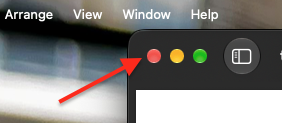
When you click the red dot, the window gracefully vanishes. Most people assume this shuts the program down completely. In the Mac world, however, red simply means “put this paper away.” The application stays alive in the background, ready to spring back to life instantly when you need it again. If you actually want to quit the program entirely, just press Cmd + Q.
The Yellow Dot: Tucking It Away
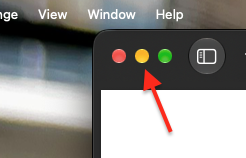
The middle child of the trio is the most straightforward. Clicking yellow gently minimizes your current window, sliding it smoothly down into the Dock at the bottom of your screen. It’s out of sight, perfectly preserved, and waiting for a single click to return.
The Green Dot: The Full-Screen Mystery

This is where almost everyone gets thrown off course and its really why this article exists. Logically, clicking a green button should just make your window bigger so it fits the screen nicely. But, hover your mouse over the green dot instead and you’ll be offered a full menu of options. Its the only one of the three buttons that finds the need to explain itself.
- This will quickly move the current window to the left of the screen to make room on the screen.
- This will quickly move the current window to the right of the screen to make room on the screen.
- This squishes your document to the top of the screen and expands it from edge to edge.
- This squishes your document to the bottom of the screen and expands it from edge to edge.
- This is the reason for all the confusion. This will expand the current window to take up the whole screen.
- This is best used when you have two windows open. It will divide the screen in half and give each app equal billing. This is especially useful if you are trying to compare documents or spreadsheets or photos.
- This is a lot like number 6 but if you have three open windows… it arranges them quickly and neatly.
- Finally, just like the previous except when you have 4 windows open.
But let’s face it, the only one you are likely to use is number 5 and that is OK…but when you accidentally just click on the green button out of habit, and it does something unexpected, now you’ll know why.
*macOS27 makes this a little better and doesn’t hide your menu bar anymore


Recent Comments