
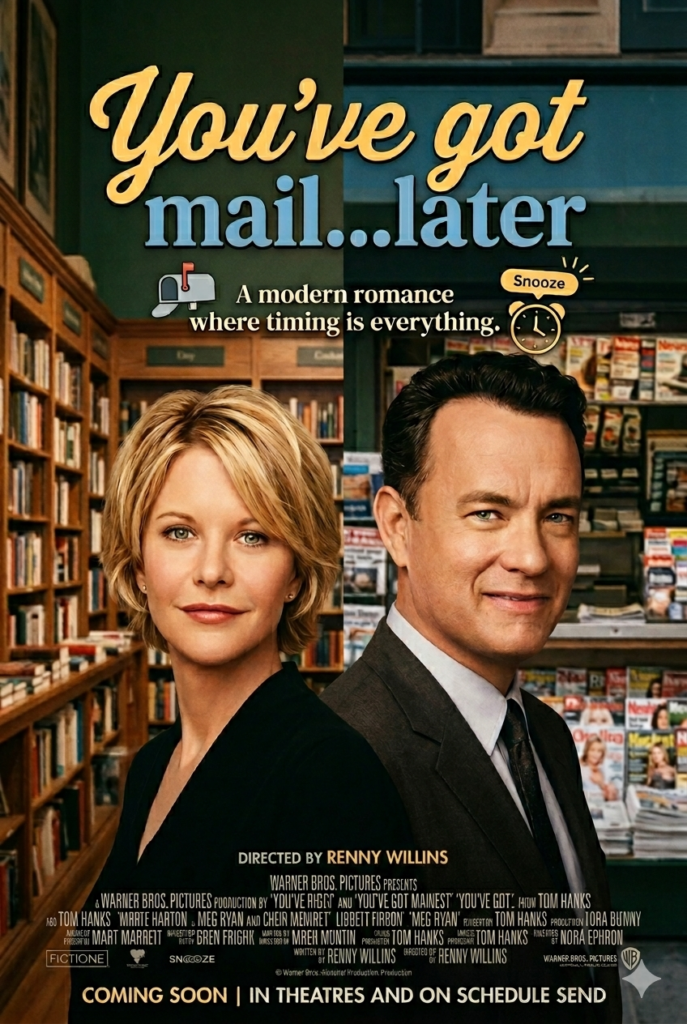
We’ve all been there. It’s two in the morning. You’re wide awake, possibly because you’ve had a particularly robust piece of cheese, and suddenly—ping—your brain decides to function. You remember that you forgot to tell the plumber that the downstairs tap is making a noise like a dying bagpipe.
Now, in the olden days—by which I mean about two years ago—you had a choice. You could write the message there and then, hit send, and wake up the plumber’s entire household, effectively ensuring he never fixes your tap and possibly sets fire to your lawn instead. Or, you could wait until morning, at which point you’d have forgotten the plumber even existed.
It was a stalemate. A crisis of human forgetfulness versus basic social decency.
But then, Apple released macOS 26 and iOS 26. And with them, they’ve perfected the “Send Later” feature in Mail and Messages. And I’m going to go out on a limb here and say it’s the most important invention since the heated beret.
The beauty of this feature is the sheer, unadulterated sneakiness of it. On the Mac you can sit at your desk at 1 AM, typing out a blistering email to a contractor about why the new fence looks like it was installed by a blind badger. You can vent. You can be as “precise” as you like.
But instead of clicking ‘Send’ and appearing like a deranged insomniac, you simply click that little arrow and tell the computer to hold its horses until 9:01 AM.
In my case, to the recipient, I look like a man of action. A man who starts his day with a clear head and a sharp mind. They don’t see the man in the dressing gown with crumbs on his chest; they see a titan of industry who hits the ground running. It’s brilliant.
And then there’s iOS 26. We carry these glass slabs everywhere. They are the ultimate tools for remembering things at exactly the wrong moment.
With the new “Send Later” in Messages, you can be standing in a queue for a Cornish pasty, remember you need to ask your sister if she’s coming for Sunday lunch, and zap—you schedule it.
You don’t interrupt her while she’s at work. You don’t forget to do it later. You just dump the task into the future. It’s like having a personal assistant who lives inside your phone, but one who doesn’t complain about the hours or ask for a pay rise.
The benefits of this are, frankly, enormous.
- Social Harmony: You stop being “that person” who pings phones at dinner time. You become a civilised member of society who respects the “Do Not Disturb” moon icon.
- Mental Clarity: Once that message is scheduled, it is officially not your problem anymore. Your to-do list shrinks, your blood pressure drops, and you can go back to thinking about important things, like why we can’t buy proper lightbulbs anymore.
- Professionalism: In the professional world, timing is everything. Sending a report at 3 PM on a Friday is a waste of time; it’ll be buried under a mountain of “Out of Office” replies. Schedule it for Tuesday morning when everyone is bored and looking for something to read. You’ll look like a genius.
Apple has finally realised that just because we can communicate instantly, doesn’t mean we should. macOS 26 and iOS 26 aren’t just operating systems; they’re tools for pretending we have our lives under control.
And in this day and age, pretending is quite enough.
Now, before you go off and start scheduling your life away, you actually need to know which buttons to mash. It’s no good having the most sophisticated piece of software in the world if you’re using it like a hammer to crack a nut.
In macOS 26 and iOS 26, Apple has hidden these features just enough that you feel like a secret agent when you find them. Here is how you do it without having to call your nephew for help.
On the Mac (macOS 26)
For Emails (The “Mail” App):
Open the Mail app and compose your masterpiece. Check for spelling, though nobody does anymore.
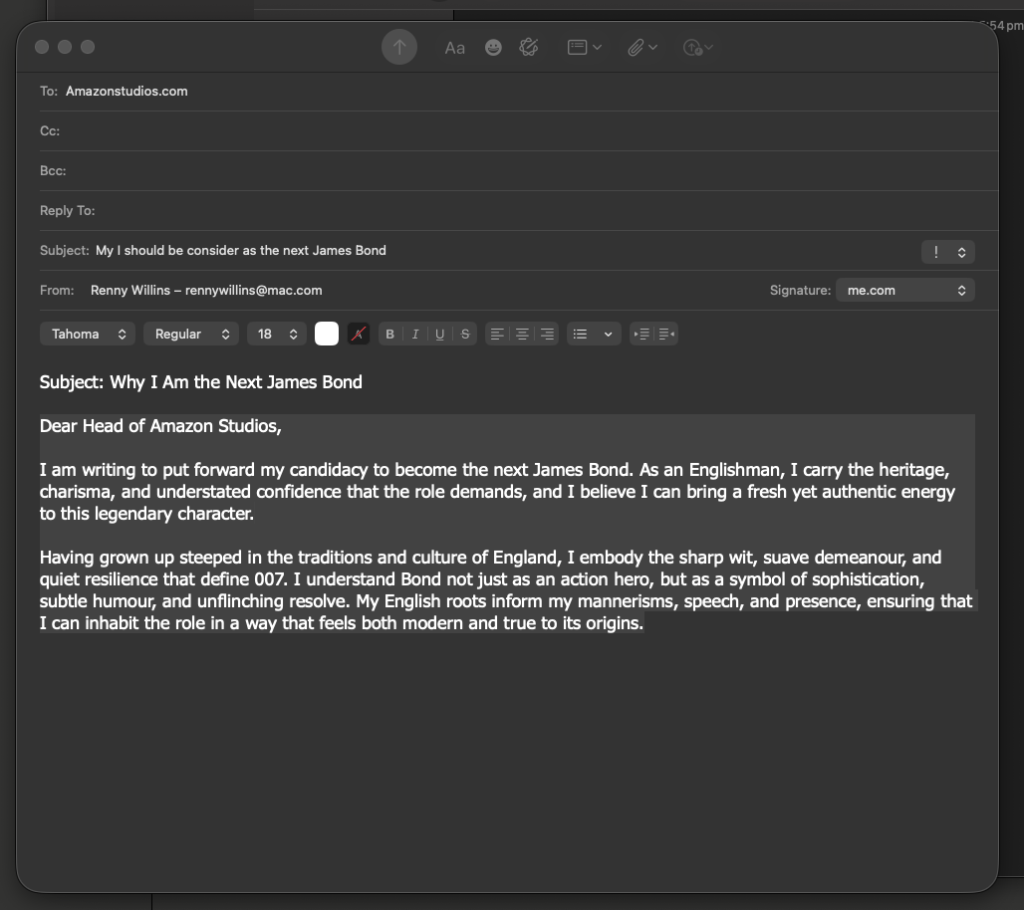
Look at the Send button (the little paper plane icon). Do not just click it like a frantic pigeon. Look at the little downward arrow right next to it.
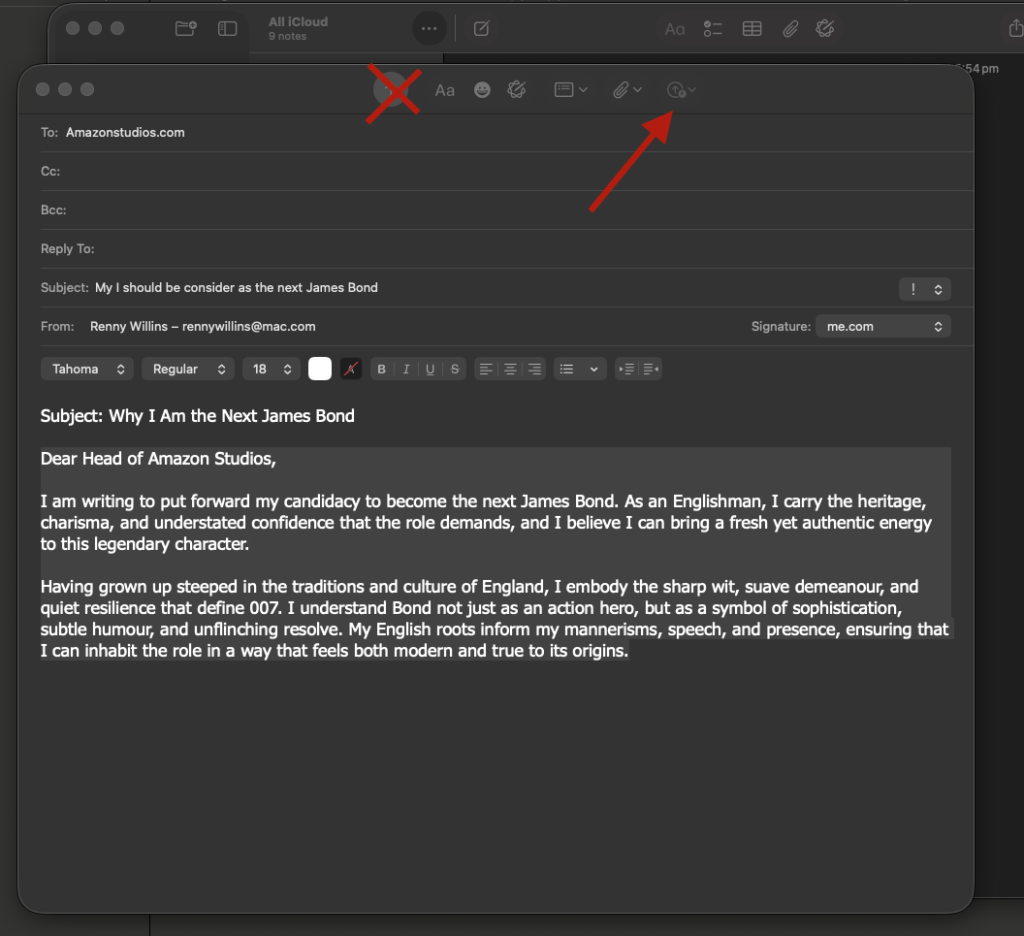
Click that arrow. You’ll see options like “Send at 9:00 PM Tonight” or “Send at 8:00 AM Tomorrow.”
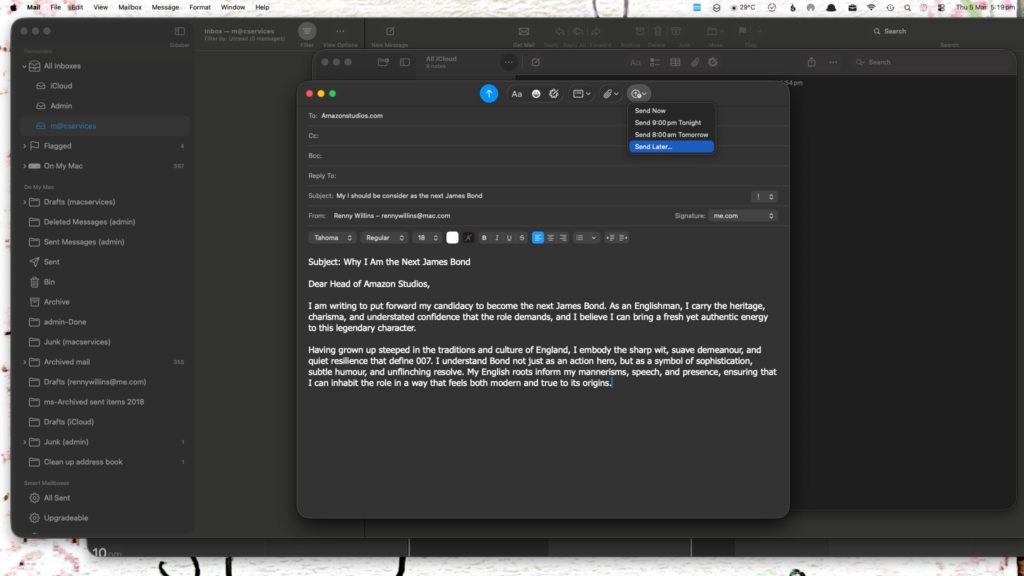
If you want a specific time—say, exactly when you know your boss is stuck in a meeting—click “Send Later…” and pick your moment on the calendar. Hit “Schedule,” and you’re done.
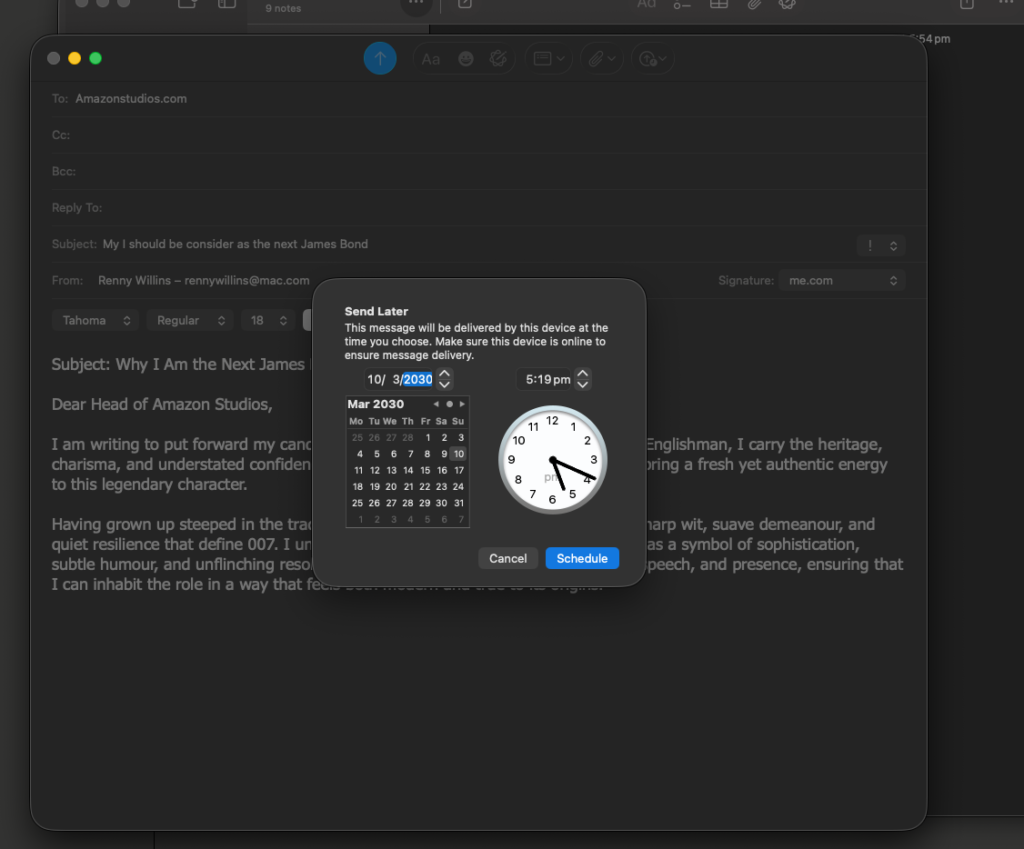
For Texts (The “Messages” App):
- The Draft: Open Messages, find your victim, and type your text. PHOTO
- The Plus Power: Click the “+” (Plus) icon to the left of the text field. PHOTO
- The Strike: From the menu that slides up, select “Send Later.”
- The Timer: A slider appears. Dial in the date and time, hit the blue arrow, and the message will sit there with a dashed border, waiting patiently to pounce. But sometimes you’ll noticed with a knitted brow that this option is missing… this is because your chosen recipient needs to be using an iPhone – as of course they should be. This won’t work if you are sending the message to a Haemorrhoid, sorry Android, phone.
On the iPhone (iOS 26)
For Texts (iMessage):
The Message: Type your text as usual.
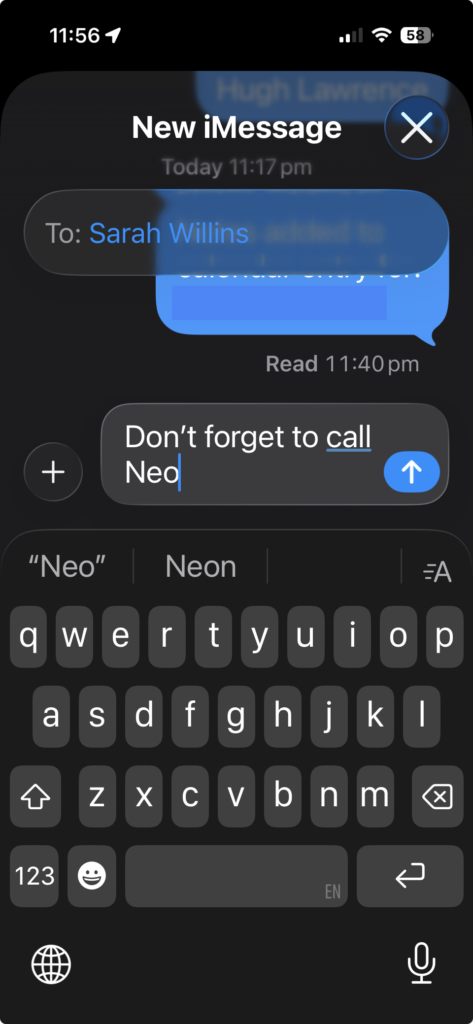
The Long Game: Tap that “+” (Plus) button next to the typing bar.
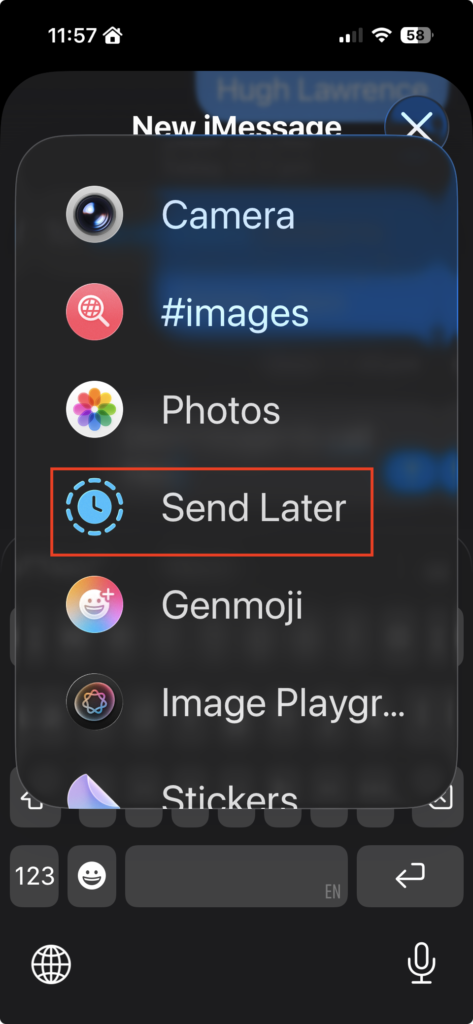
The Menu: You might have to scroll a bit depending on how many stickers of cats you’ve downloaded, but find “Send Later.”
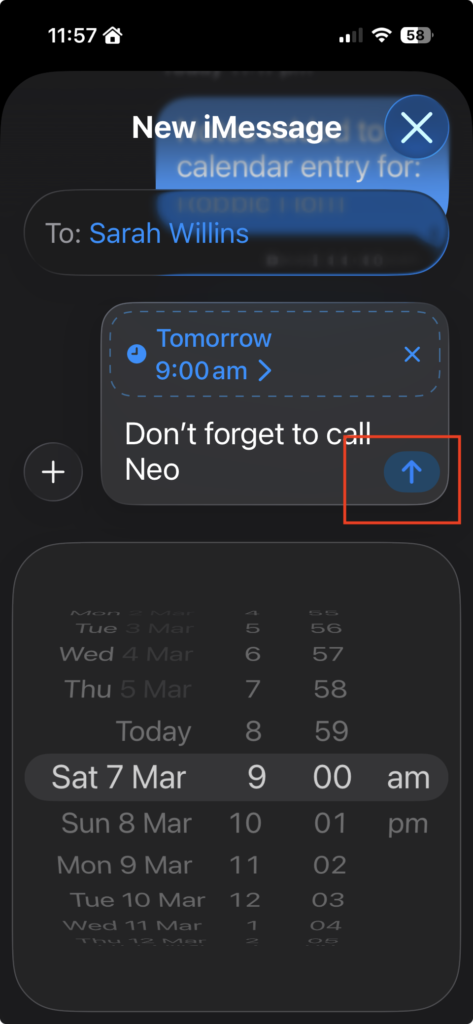
The Launch: Choose your time, tap the blue “Send” arrow, and you’ve successfully offloaded that thought into the future. It’ll stay in a dashed bubble until it’s time to go.
For Email in iOS or iPadOS:
Well, that’s practically the same as the Mac… so if you can do it there, you can do it on an phone.
It really is that simple. You’ve now mastered the art of being productive while you’re actually asleep, or more likely, at least in my case, fending off plumbers.

Recent Comments